ui
Launch the web dashboard for visual skill management.
skillshare ui                  # Run in the foreground
skillshare ui start            # Start (or reuse) a background server
skillshare ui stop             # Stop the background server
Opens http://127.0.0.1:19420 in your default browser.
Modes
| Mode | Behavior |
|---|---|
skillshare ui (default) | Runs the UI server in the foreground; Ctrl+C stops it |
skillshare ui start | Starts the UI server as a background process and returns control to the shell. Re-running start reuses the existing process if it's still healthy |
skillshare ui stop | Stops the background UI server started by skillshare ui start |
When to Use
- Manage skills, targets, and sync through a visual web interface
- Browse and install skills without memorizing CLI flags
- Run security audits with a visual findings report
- Share a dashboard view with team members less comfortable with CLI
Flags
| Flag | Default | Description |
|---|---|---|
-p, --project | Run in project mode (uses .skillshare/) | |
-g, --global | Run in global mode (uses ~/.config/skillshare/) | |
--port <port> | 19420 | HTTP server port |
--host <host> | 127.0.0.1 | Bind address (use 0.0.0.0 for Docker) |
-b, --base-path <path> | Sub-path for reverse proxy (e.g., /skillshare) | |
--no-open | false | Don't open browser automatically |
--app | false | Open the dashboard as a desktop-style Chromium app window when available (start mode only) |
--clear-cache | In the foreground form: clear cached UI assets and exit. Combined with start: clear cache, then start in the background |
If .skillshare/config.yaml exists in the current directory, the dashboard automatically starts in project mode. Use -g to force global mode.
Examples
# Default: opens browser on localhost:19420 (foreground)
skillshare ui

# Project mode (manage .skillshare/ skills)
skillshare ui -p

# Custom port
skillshare ui --port 8080

# Docker / remote access
skillshare ui --host 0.0.0.0 --no-open

# Start in the background and return to the shell
skillshare ui start

# Start as a chrome-less desktop-style app window
skillshare ui start --app

# Stop the background server (uses the remembered host/port)
skillshare ui stop

# Clear the cached UI assets, then start fresh in the background
skillshare ui start --clear-cache
Dashboard Pages
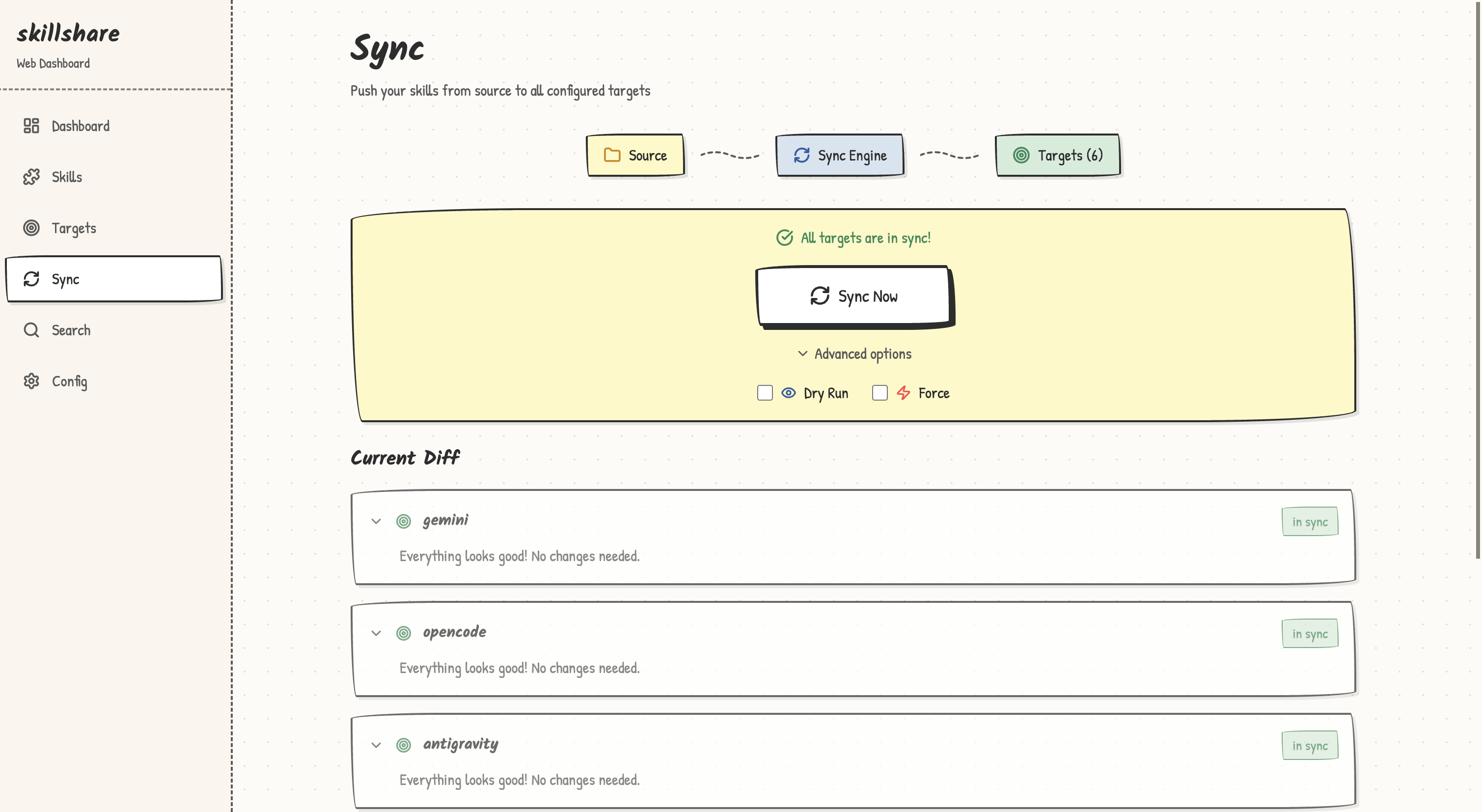
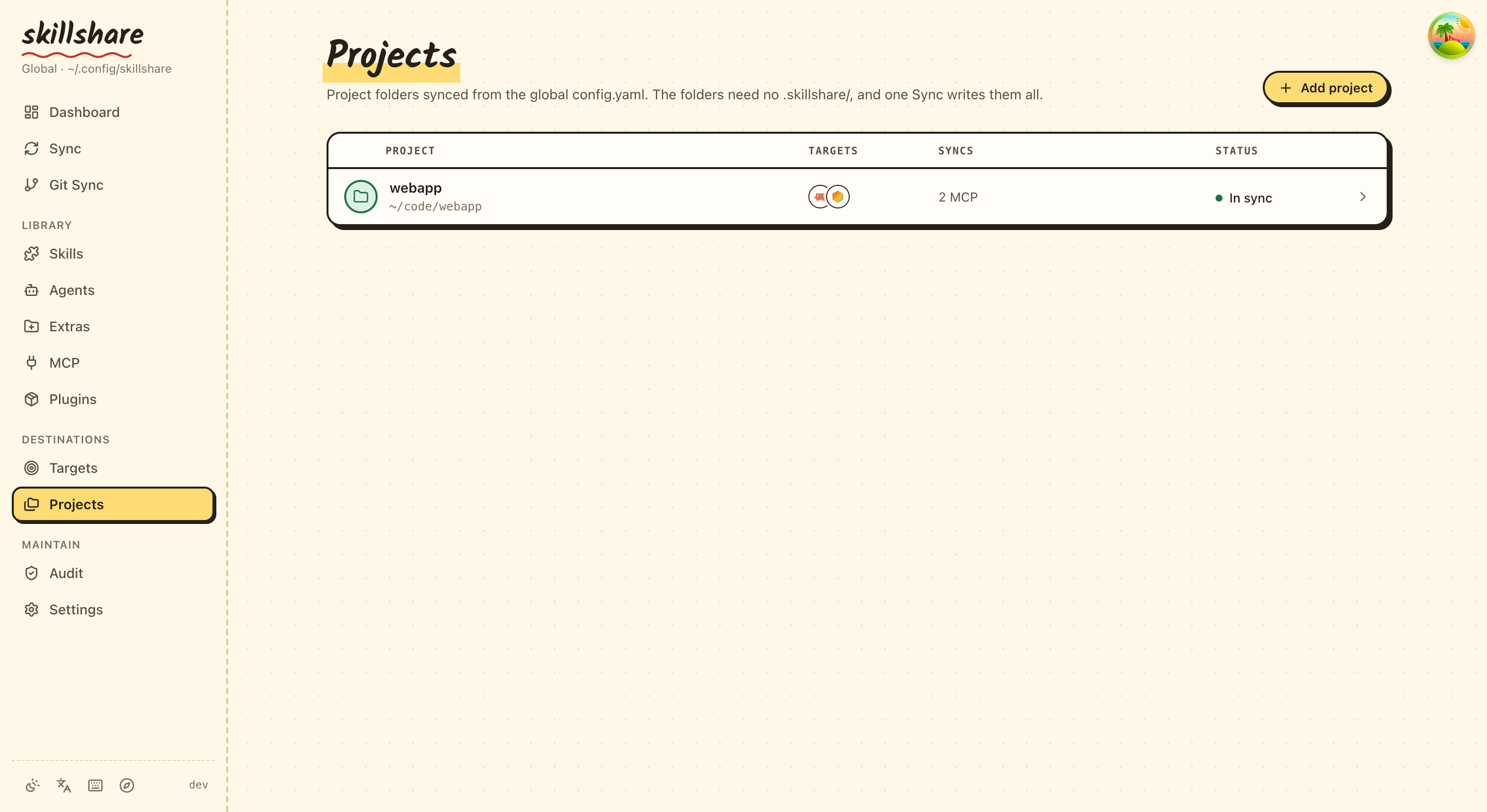
The sidebar groups pages by task: syncing, what you manage, where it goes, and upkeep. The line under the name shows the mode and its folder, such as Global · ~/.config/skillshare.
Some pages show a count in the sidebar when they need attention. The counts refresh every 15 seconds while the dashboard tab is open:
- Sync: changes a sync would apply
- Git Sync: uncommitted files, or commits not pushed yet when the tree is clean
- Audit: skills and agents blocked by the last scan (shown after you run one)
| Page | Description |
|---|---|
| Dashboard | Counts for skills, agents, extras, MCP servers, hooks, plugins, and targets, plus items that need attention. Uninstalling a tracked repo with uncommitted changes, or whose git status can't be read, explains why and asks again before moving it to the trash as it is, like uninstall --force |
| Sync | Preview every change per target before writing. Choose which parts to include (Skills, Agents, Extras, MCP). Files edited inside a target are kept unless Force is on. Items that exist only in a target can be collected back to source from here. Each sync backs up target folders first. When a target fails, the others still sync: the page lists each failed target with its part (Skills, Agents, Extras or Config), a plain-language explanation when the cause is a common one (a symlink that points elsewhere, permission denied, a read-only file system, a missing file or folder, invalid target settings) and the error, above the other warnings, offers Turn on Force for a skills symlink that points elsewhere, and marks the target in the change list. Even when every target fails, the page lists them the same way. The Last sync card names the targets that failed in the latest sync |
| Git Sync | Commit and push the source repo, push commits that aren't on the remote yet, and pull. Opening the page fetches from the remote, so Pull shows how many commits the remote has. When both computers have new commits, Pull and merge preserves both histories before you push. With uncommitted changes and remote updates, Commit and pull saves your changes first. Pull syncs what the repo scope holds (skills, agents, extras, or root), like pull. Sync both ways commits local changes, pulls and merges, syncs targets, then pushes, like push --pull; a conflict stops it before pushing. Conflicting files open a version comparison; choose the local or remote version of each whole file, then Apply choices and pull. Cancel leaves your files unchanged. When a first pull can't merge with the remote, it offers a force pull that replaces local files with the remote branch |
| Hubs | Reached from the Skills page. Lists the built-in hub, saved hubs, and your own Hubs (Mine); pick one to filter its skills and install them. Add or create a Hub adds an existing hub, creates a new Hub, or imports a skillshare-hub.json. Your own Hubs are changed with Edit; Share downloads the index and builds the hub add command. See hub |
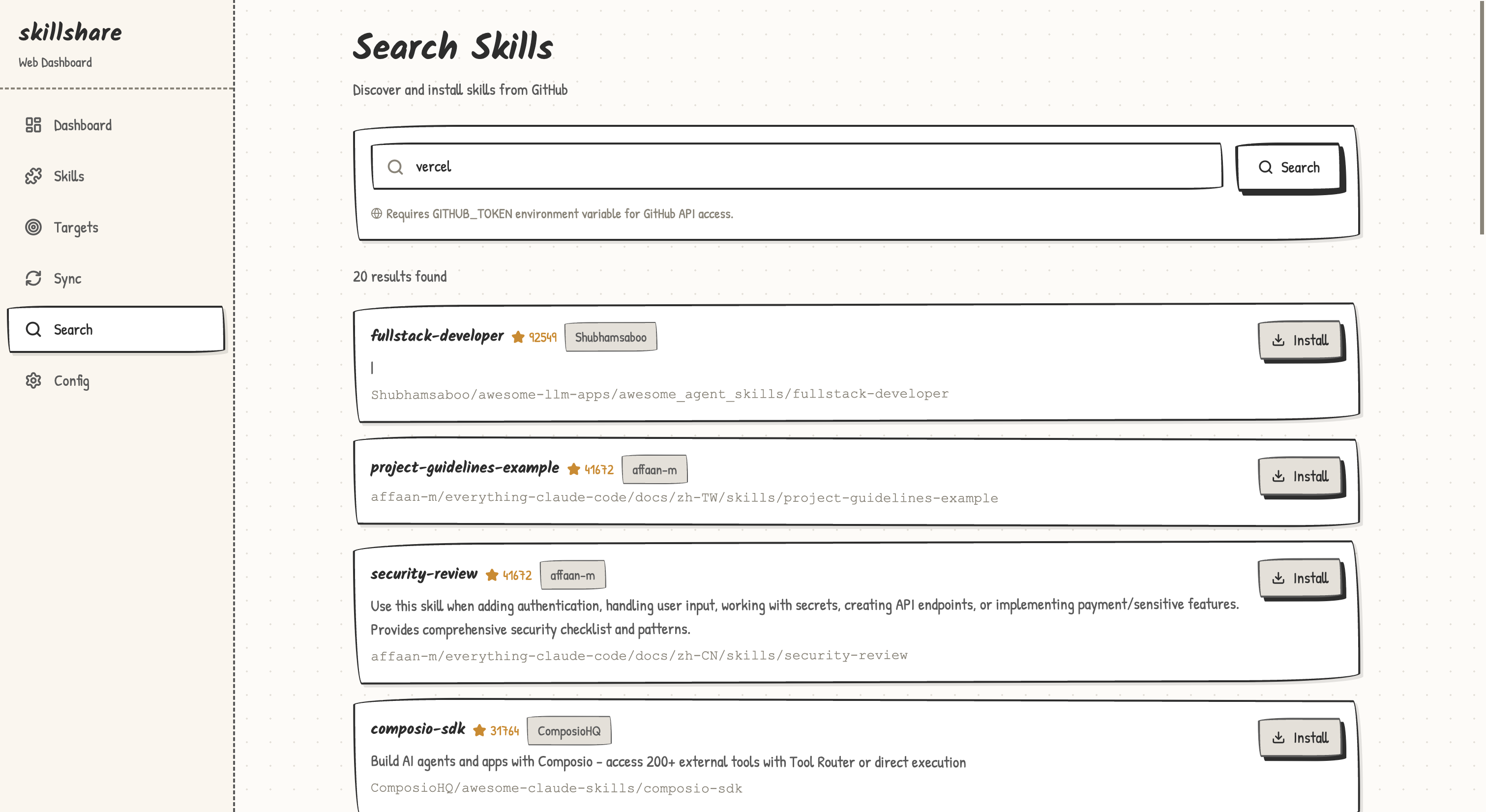
| Skills / Agents | Installed items, the Updates tab, and the Trash tab. Skills also have an Analyze tab that estimates how many tokens each skill adds to a target's context. Install searches GitHub or installs from a URL or path. + New Skill opens the creation wizard. Link folder links a folder into the skills source like link: it takes a path, an optional link name and, while follow_source_links is off, a checkbox that turns it on, and a refused folder shows the same reason as the command. A linked folder is listed as its own group with the link icon and the folder it points at; the icon button on its row (the link icon turns into an unlink icon on hover) asks for confirmation and then unlinks it like unlink: the folder is not touched and the link can be restored from the Trash tab. A skill inside a linked folder can still be uninstalled on its own, which moves it out of that folder to the trash; linked folders have no Update repo or Uninstall repo. The list and card views can filter by Folder (a tracked repo, a folder such as frontend/react, or Root) and group by Folder, with the root first and folders A→Z. The tree view shows the source folders on the left and details on the right: click a folder or skill to select it, Cmd/Ctrl-click to add to the selection, Shift-click for a range, and double-click a skill to open it. The right side turns everything selected on or off with one switch (an item that a ! rule in .skillignore.local keeps on is reported as failed, with the reason), sets its targets (tracked repos and their subfolders included), and lists each skill with its own switch; a tracked repo also offers Update repo and Uninstall repo. A skill with disable-model-invocation: true carries a manual only tag in the list, on its tile and on its detail page, the same state list toggles with m. In the skill editor, Add field describes what each frontmatter field does. Sync skills / Sync agents previews, then syncs only that kind to every target; the same dialog opens from Sync Now after an update, an uninstall or a collect. The file browser lists SKILL.md and attachments through followed source links, including when the link itself is the skill root. |
| Extras | Folders & files: rules, commands, and other files synced alongside skills. AGENTS.md: in global mode, shared AGENTS.md files and which targets use them; in a project, the project's ./AGENTS.md and whether each target reads it. See Share one AGENTS.md across your tools. Memory: browse, search, preview, edit, and delete shared Markdown notes; add INDEX links, preserve drafts on conflicts, open Backup Files history, and connect agents through reviewed instruction-file changes. Configured status does not prove a read. See the Memory walkthrough |
| MCP | One row per server, with the Agents it syncs to as chips; the count button on the row opens their toggles. Add server takes a URL, a command, a pasted snippet or a file; Import from a target reads what an installed Agent already has. Each server's menu has View what each Agent gets, which lists the source and every Agent's file and shows the one you pick, including unsaved edits. Conflicts offer Import from the Agent or Replace with source. The server dialog's Tools section sets the tool policy: Load tools, which starts the server once with the dialog's settings, saved or not, and lists its tools to tick; an Exclude rules row for * patterns; it lists each selected Agent that does not apply part of the policy, and the row shows a tag when a policy is set. For a Pi server, the dialog also has Pi's built-in MCP settings: tool exposure and other Pi settings, which take piOptions as JSON, with their help in info tooltips. Defaults edits mcp.targets. Sync MCP, in the Sync box, lists the pending changes and writes only the MCP config files, keeping a backup of each; below it, Check checks the servers and Backups and restore previews and restores those backups. |
| Plugins | One row per plugin, with its Agents as toggles. Expanding a row also lists the other Agents the source supports; ticking one previews an install. The row menu syncs, updates, removes, or opens View files, a read-only browser of the local copy Skillshare reviewed. Share copies one command that adds the ticked plugins from their HTTPS sources. See Manage plugins across tools |
| Targets | Target list with status. Add target also takes Another account: a second config folder of an Agent you already use, with a preview of where it writes. Each target's page edits include/exclude filters and collects local-only skills back to source. The Syncing column shows what each target gets, as links: Skills, Agents, MCP and Hooks with their counts, Extensions for Pi, and the target's instruction file when a shared AGENTS.md is connected to it; each opens that tab of the target's page. A target that has an MCP config file gets an MCP tab with one row per server; a click saves at once, and Sync all targets writes the MCP files of every target. Each target also has a tab named after its instruction file (CLAUDE.md, GEMINI.md, AGENTS.md, ...) that shows the read order, edits the file and converts it to AGENTS.md |
| Projects | Global mode only. Project folders that the global config syncs into, from projects and mcp.projects. Add project takes a folder, its targets and what to sync. Each project has Skills and Agents tabs with filters, a preview and the folders that get written, and an MCP tab that turns global servers off in that folder or gives it servers of its own, with Check for those servers. Sync project previews, then syncs only that project's skills, agents and MCP. Targets that already point into a project folder can be converted |
| Audit | Security scan of skills and agents, with findings by severity. The Rules tab browses every rule by category: switch one off, change its severity, apply a severity to a whole category, pick the scan profile (default, strict, permissive), or open the editor for custom audit-rules.yaml |
| Settings | Tabbed: General (source paths, sync mode, appearance), Backup (target folder snapshots, earlier versions of files such as AGENTS.md, and MCP config backups; see backup), Log (operation history), Health (the same checks as doctor), Extensions (sync-time file transforms), Files (direct editors for config.yaml, .skillignore, and .agentignore; when a .skillignore.local or .agentignore.local exists, the editor shows its rules above the file, since they apply after it and can override it) |
Discard changes beside the change list restores all tracked files and the index in the selected Git scope to the last commit and deletes untracked files and folders, after confirmation. Ignored files, nested Git repositories, and root-scope config.yaml are kept. It does not change commits or push; the action cannot be undone. Dry run previews without changing files. A first commit is required.
The Git conflict comparison uses complete file versions. Choosing a deleted version deletes that file in the merge; non-conflicting files merge normally. Both commit histories remain available. Metadata conflicts resolve automatically. Binary files and files larger than 16 KiB can be selected but have no text preview. If either reviewed revision changes before you apply your choices, the dialog refreshes and requires new choices. After the merge, push to share the result with your other computer.
On the Updates tab, a progress bar tracks the update run and the active row is marked while it updates. Blocked or failed updates appear in a separate section. Followed Git checkouts are listed as informational rows with their link name and target path. Like skillshare update --all, this tab does not check, update, or force-retry them; manage those checkouts yourself or use an explicit CLI update by name.
Old links such as /collect, /install, /search, /trash, /analyze, /backup, /log, and /doctor redirect to their new place.
The Files tab puts a panel beside the editor. For config.yaml it shows what the field under the cursor does, the file's structure, and the unsaved changes; for the ignore files it lists what the patterns currently hide. Cmd+S / Ctrl+S saves. The rules editor under Audit -> Rules -> Edit YAML has the same panel plus a Test tab that runs a rule's regex against lines you paste.
Theme System
The dashboard supports two visual styles and three color modes, switchable via the Theme button in the sidebar:
| Setting | Options | Default |
|---|---|---|
| Style | Clean (professional), Playful (bold outlines, hard shadows, handwritten headings) | Playful |
| Mode | Light, Dark, System (follows OS preference) | Light |
Theme preferences persist in localStorage across sessions.
Project Mode Differences
When running in project mode (-p), the dashboard adapts:
- Sidebar shows
Project · <project path>under the name - Git Sync page is hidden (project skills use the project's own git)
- Sync backs up agent target folders only, like
skillshare sync -p - Backup tab is hidden in Settings (use version control instead)
- Tracked Repos section is hidden from Dashboard (not applicable)
- Settings -> Files shows
.skillshare/config.yamland the project-level.skillignoreinstead of the global versions - Available targets lists project-level targets (e.g.,
.claude/skills/relative to project root) - Targets count and switch the project's MCP servers, written to the project's own files (such as
.mcp.json). For Claude Code, OpenCode, Kilo Code and Pi, the MCP tab also lists the switches that turn a global server off in this project - Install automatically reconciles
skills:entries in the project config - Extras -> AGENTS.md edits the project's
./AGENTS.mdinstead of shared files, and offers a small fix for targets that only read their own file
UI Preview
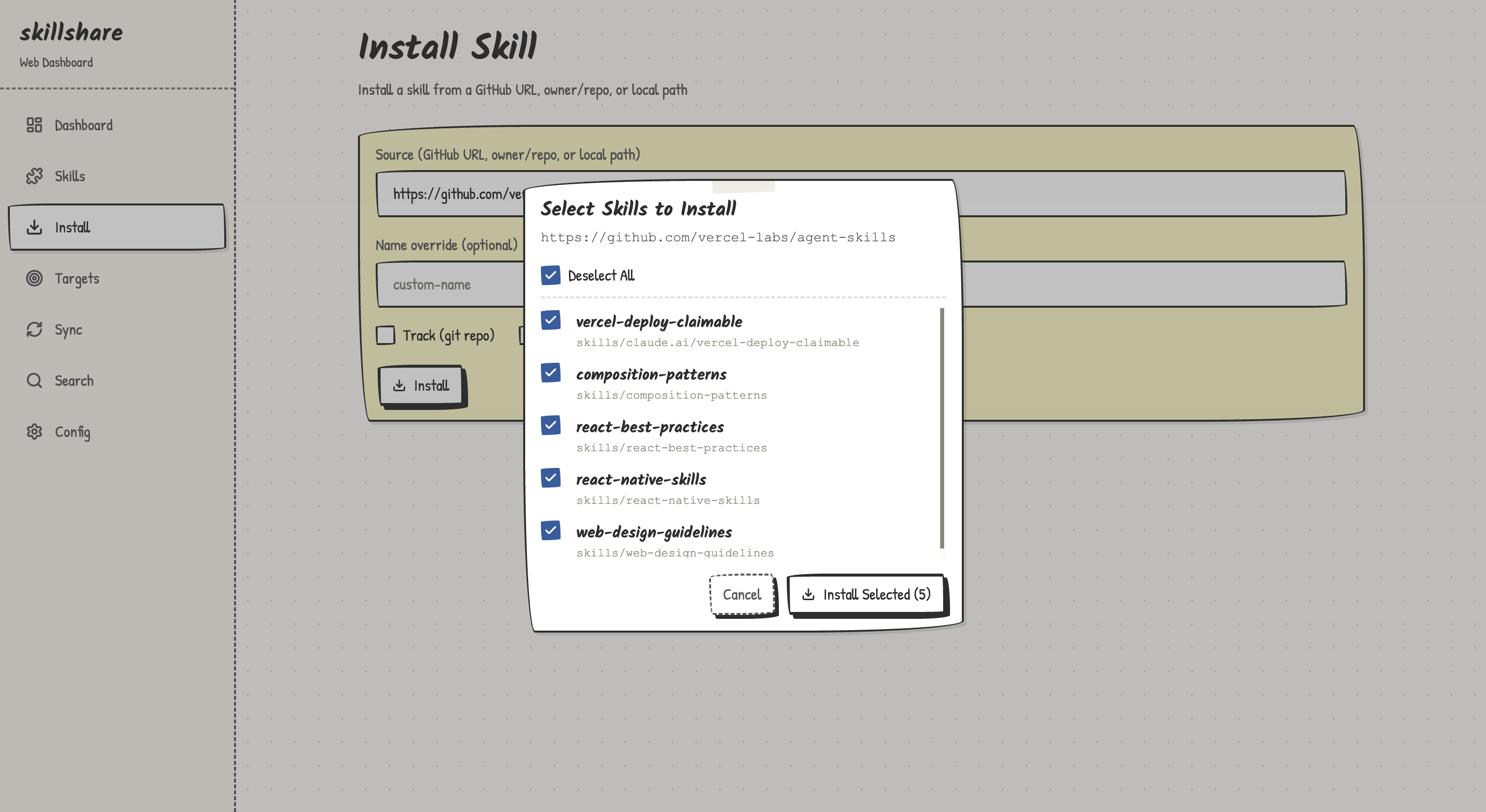
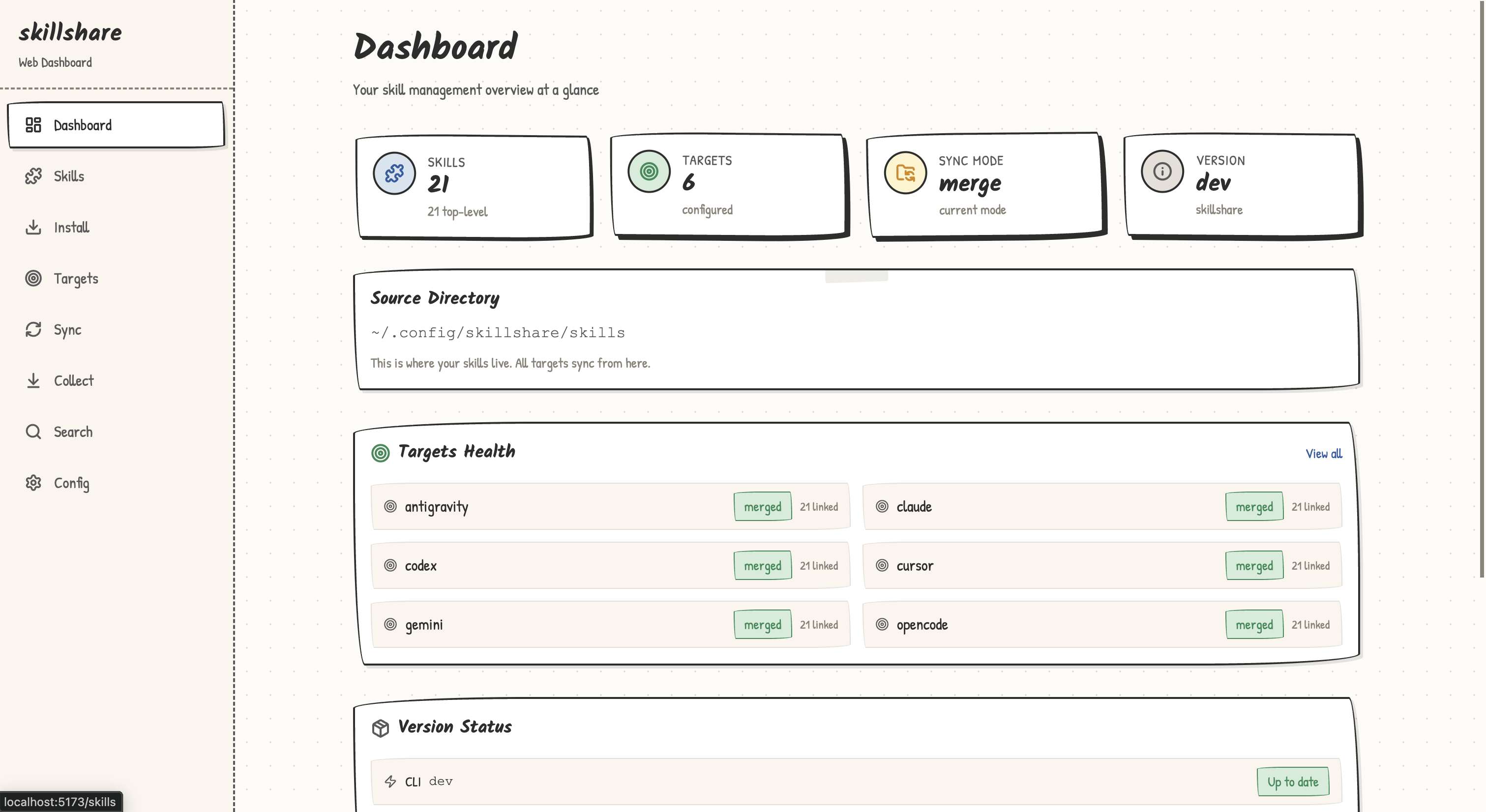
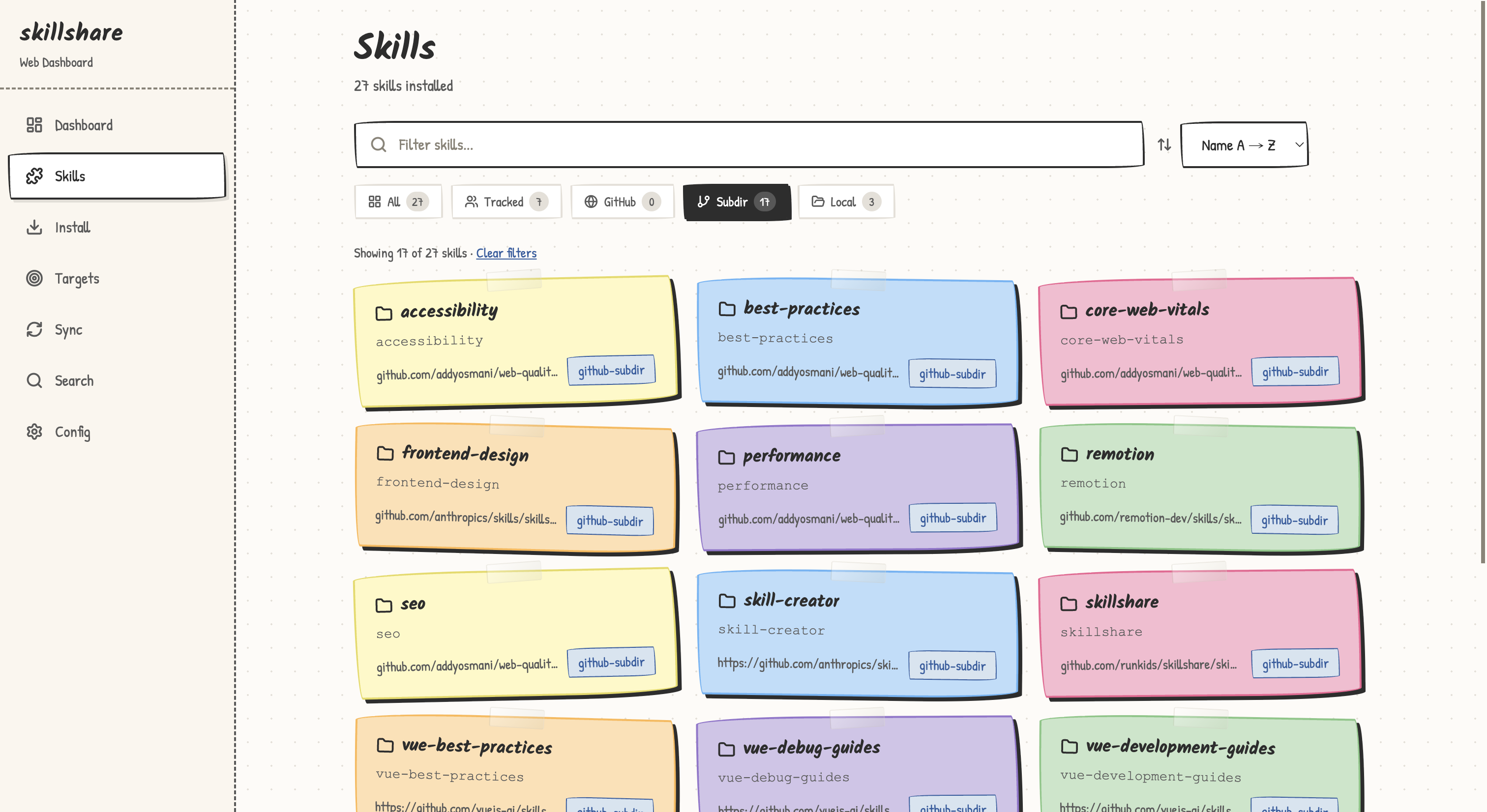
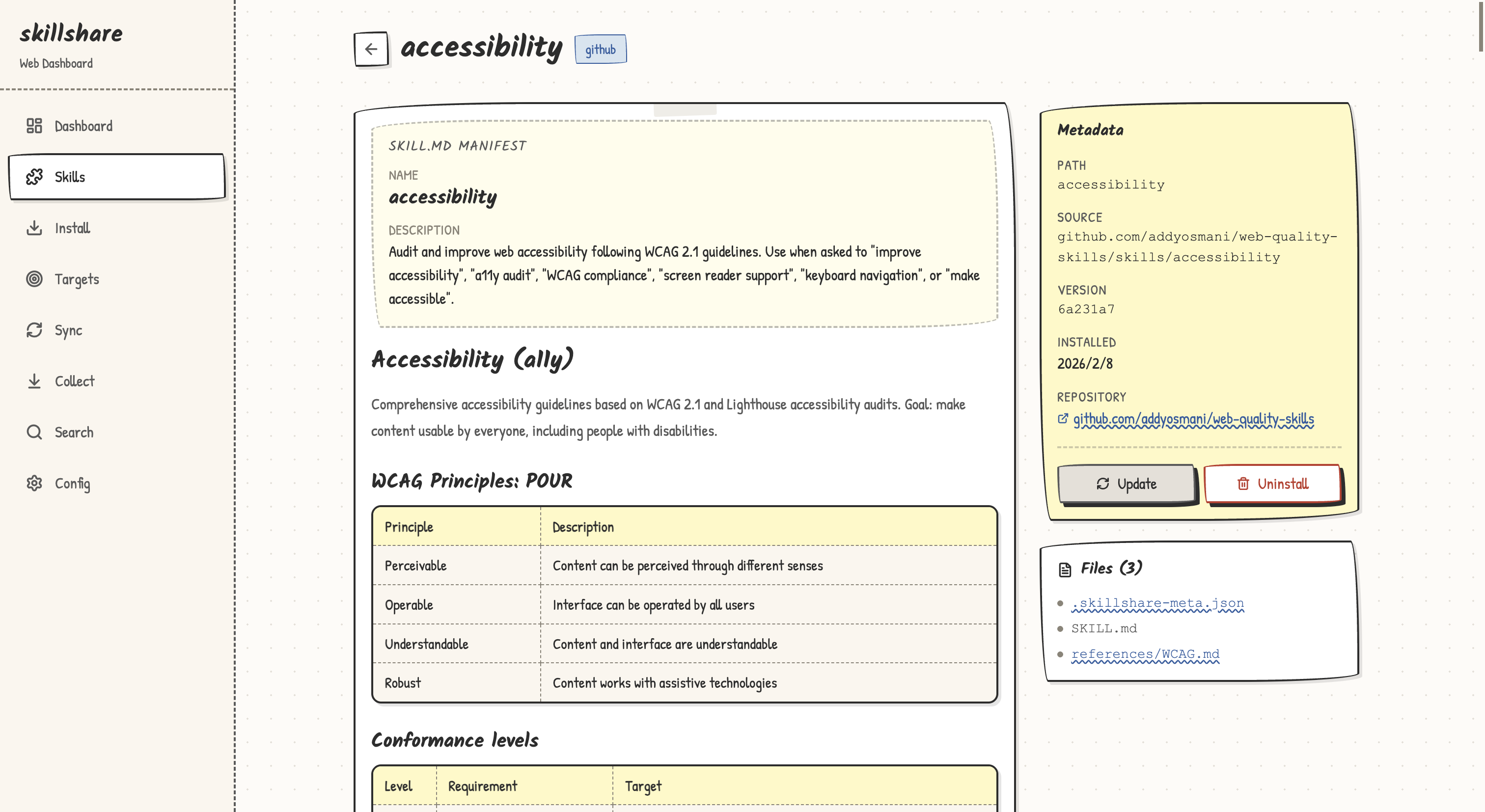
REST API
The web dashboard exposes a REST API at /api/. All endpoints return JSON.
| Method | Path | Description |
|---|---|---|
| GET | /api/overview | Skill/target counts, mode, version, config folder (configDir) |
| GET | /api/skills | List all skills with metadata |
| GET | /api/skills/{name} | Skill detail + SKILL.md content |
| GET | /api/skills/templates | Get available patterns and categories for skill creation |
| POST | /api/skills | Create a new skill (name, pattern, category, scaffoldDirs) |
| DELETE | /api/skills/{name} | Uninstall a skill |
| GET | /api/targets | List targets with status, include/exclude filters, and per-target expected counts |
| POST | /api/targets | Add a target |
| DELETE | /api/targets/{name} | Remove a target |
| POST | /api/sync | Run sync (supports dryRun, force, kind, and project, a declared project root that limits the sync to that project's targets). Backs up targets first unless dryRun is set |
| POST | /api/git/commit | Create a local git commit from the source repo without pushing |
| POST | /api/git/discard | Discard uncommitted changes in the configured Git scope (global mode only; requires a first commit). Supports dryRun. Keeps ignored files, nested Git repositories, and root-scope config.yaml |
| GET | /api/git/status | Source repo status, including commits not pushed yet (ahead) and upstream commits not pulled yet as of the last fetch (behind). Never fetches |
| POST | /api/push | Commit any changes, then push. Sets the upstream on the first push. When the remote has commits this repo lacks, it fails with 409 and error code push_rejected; pull, then push again |
| POST | /api/pull | Pull, then sync what the repo scope holds. Diverged history is merged; .metadata.json conflicts resolve automatically. Other conflicts return 409 pull_conflict with the merge undone and error_params containing localHash, remoteHash, and files with local/remote previews. Retry with resolution: { localHash, remoteHash, choices }, where choices maps every conflicting path to local or remote. Stale or incomplete choices return a fresh conflict review. Supports dryRun. When a first pull can't merge, it fails with error code merge_failed; retry with force: true to replace local files with the remote branch. alwaysSync: true syncs targets even when nothing new was pulled. A remote with no branches returns 400 remote_empty |
| GET | /api/diff | Diff between source and targets |
| GET | /api/search?q= | Search GitHub for skills |
| POST | /api/install | Install a skill from source |
| GET | /api/audit | Scan all skills for security threats |
| GET | /api/audit/rules | Get custom audit rules YAML |
| PUT | /api/audit/rules | Save custom audit rules (validates regex) |
| POST | /api/audit/rules | Create starter audit-rules.yaml |
| GET | /api/audit/rules/compiled | Every rule after merging built-ins with custom rules, plus the active profile |
| POST | /api/audit/rules/toggle | Enable, disable, or re-rate a rule or a whole pattern |
| POST | /api/audit/rules/reset | Delete custom rules and restore the built-in defaults |
| PATCH | /api/audit/policy | Set blockThreshold, profile, or both |
| GET | /api/log | List log entries with optional filters |
| GET | /api/config | Get config as YAML |
| PUT | /api/config | Update config YAML |
| GET | /api/skillignore | Get .skillignore content, .skillignore.local content when present, and ignore stats |
| PUT | /api/skillignore | Update .skillignore content |
| GET | /api/doctor | Run all health checks (JSON) |
| GET | /api/health | Liveness probe; returns 200 once the server is ready |
| GET | /api/version | Current/latest version + whether an upgrade is available |
| POST | /api/upgrade | Run skillshare upgrade in place (returns devMode: true when the binary is a dev build) |
| POST | /api/restart | Restart the local UI server; optional { "clearCache": true } body clears cached UI assets first |
In-place Upgrade
When the dashboard detects that a newer CLI release is available, the Update dialog and the Doctor page's Version card both expose an Update now button:
- The UI calls
POST /api/upgrade, which runsskillshare upgradeon the host. - Once the new binary is in place, the UI calls
POST /api/restartto restart the local server. - The browser polls
GET /api/healthand reloads automatically once the new server is ready.
If the running binary is a development build (version == "dev"), the upgrade endpoint returns devMode: true and the UI simulates a restart without modifying anything on disk.
If the auto-reload doesn't complete, the dialog tells you to run skillshare ui start to bring the background server back up.
Reverse Proxy
If you run the dashboard on a shared server behind a reverse proxy (e.g., homelab, internal tools platform), use --base-path to serve it under a sub-path alongside other services:
skillshare ui --base-path /skillshare --host 0.0.0.0 --no-open
Or via environment variable:
SKILLSHARE_UI_BASE_PATH=/skillshare skillshare ui --host 0.0.0.0 --no-open
Nginx
location /skillshare/ {
    proxy_pass http://127.0.0.1:19420;
    proxy_set_header Host $host;
    proxy_set_header X-Real-IP $remote_addr;
}
Caddy
handle_path /skillshare/* {
    reverse_proxy 127.0.0.1:19420
}
Without --base-path, the dashboard behaves identically to before — no configuration needed for direct access on localhost:19420.
The MCP page works only when the browser opens the dashboard by localhost or an IP address, such as http://192.168.1.20:19420. Through a domain name, including a reverse proxy, MCP requests return 403: DNS rebinding attacks always use a domain name. To manage MCP settings on a remote machine, forward the port with ssh -L 19420:127.0.0.1:19420 HOST and open http://localhost:19420.
Docker Usage
To use the web UI inside Docker (requires network access for first-time UI download):
make playground

# Inside container:
skillshare ui --host 0.0.0.0 --no-open
Then open http://localhost:19420 on your host machine (port 19420 is mapped automatically).
Project Mode
The web dashboard fully supports project-level skills:
cd my-project
skillshare ui -p
Or simply skillshare ui if .skillshare/config.yaml exists (auto-detected).
The dashboard reads and writes .skillshare/config.yaml, syncs to project-local targets, and reconciles remote skill entries after install — just like the CLI.
Runtime UI Download
skillshare ui automatically downloads pre-built UI assets from the matching GitHub Release on first launch. The assets are cached in ~/.cache/skillshare/ui/<version>/ (respects XDG_CACHE_HOME) so subsequent launches are instant and offline.
- First run requires an internet connection to download the UI assets (about 2 MB)
- Subsequent runs use the cached assets — no network needed
- On upgrade, old cached versions are automatically cleaned up; the new UI is pre-downloaded during
skillshare upgrade - To clear the cache manually, run
skillshare ui --clear-cache
Homebrew Note
All install methods (Homebrew, installer script, manual binary) use runtime UI download. When you run skillshare ui, it automatically downloads the UI assets from GitHub on first launch. After that, the cached assets are used offline.
To clear the downloaded UI cache:
skillshare ui --clear-cache
Architecture
The web UI is a single-page React application downloaded at runtime from the matching GitHub Release and served from disk cache (~/.cache/skillshare/ui/<version>/).
skillshare ui
  ├── Go HTTP server (net/http)
  │   ├── /api/*    → REST API handlers
  │   └── /*        → Cached React SPA (runtime download)
  └── Browser opens http://127.0.0.1:19420
See Also
- status — CLI status check
- sync — CLI sync command
- Project Setup — Project mode setup guide
- Docker Sandbox — Run UI in Docker