Cross-Machine Sync
Sync your skills across multiple computers using git.
Overview
First Machine Setup
Interactive (guided prompts)
skillshare init --remote [email protected]:you/my-skills.git
Non-interactive (no prompts)
# Remote already has your skills (or start fresh source)
skillshare init --remote [email protected]:you/my-skills.git --no-copy --all-targets --no-skill

# First machine with existing Claude skills: import during init
skillshare init --remote [email protected]:you/my-skills.git --copy-from claude --all-targets --no-skill
This:
- Creates source directory
- Initializes git with initial commit
- Adds remote
- Auto-detects and configures targets
Optional later (only if you install additional AI CLIs after setup):
skillshare init --discover
Then push your skills:
skillshare push
Add a remote to an existing setup:
skillshare init --remote [email protected]:you/my-skills.git
This works even after initial setup — it just adds the remote.
Second Machine Setup
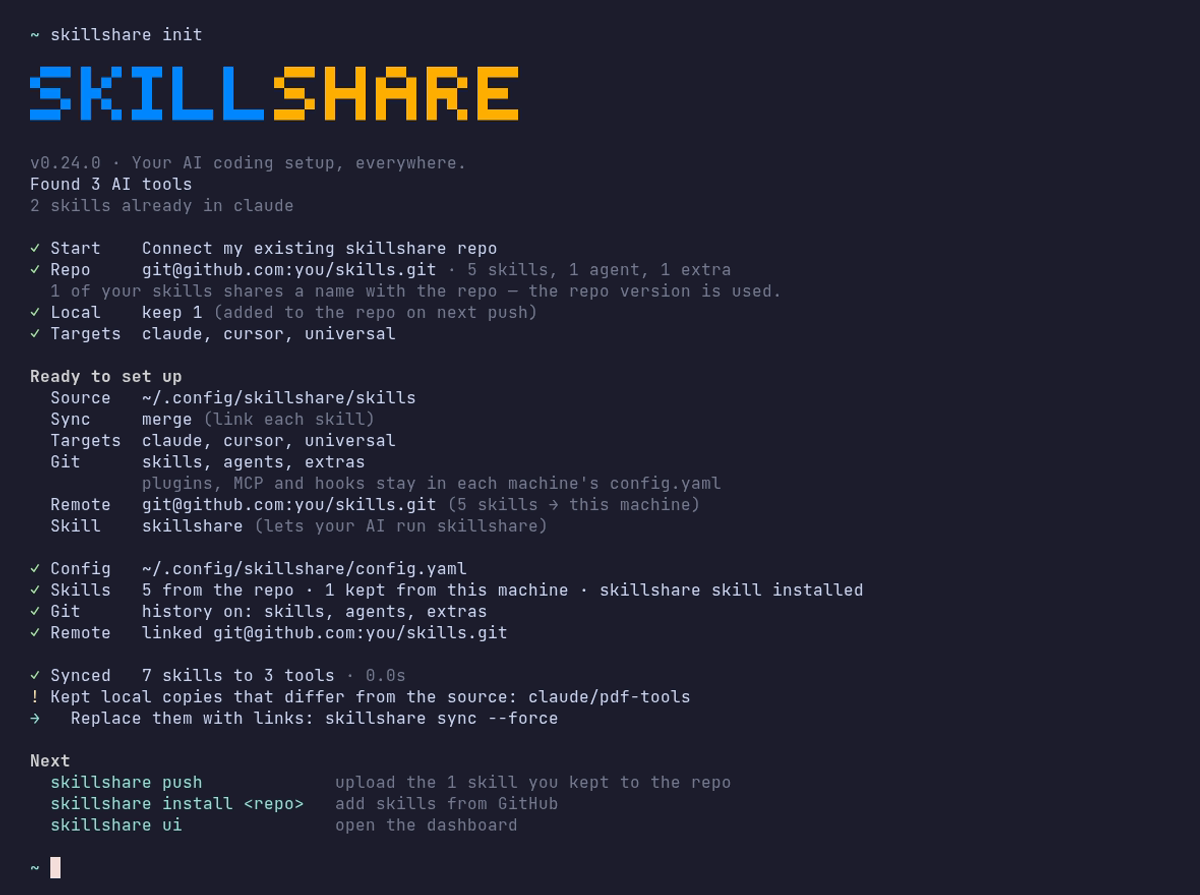
Run skillshare init, choose Connect my existing skillshare repo, and paste the repo URL:
Or pass the URL directly:
skillshare init --remote [email protected]:you/my-skills.git
Init checks the repo before writing anything, then pulls it down. No manual git clone needed.
- Clones the repo into a temporary folder to count its skills and detect its layout: a whole-folder repo pushed with
--git-root root, or skills in askills/folder - Skills on this machine with the same name as one in the repo use the repo version; skills only on this machine are kept and added on the next
skillshare push - After you confirm: creates the source, initializes git, adds the remote, resets to the remote branch, and sets up tracking
- Configures the detected local targets and offers a first sync
If you prefer manual control:
# Clone directly, then init with existing source
git clone [email protected]:you/my-skills.git ~/.config/skillshare/skills
skillshare init --source ~/.config/skillshare/skills
skillshare sync
Daily Workflow
Machine A: Make changes and push
# Edit skills (changes visible immediately via symlinks)
$EDITOR ~/.config/skillshare/skills/my-skill/SKILL.md

# Optional: create a local checkpoint without pushing
skillshare commit -m "Update my-skill"

# Push to remote when ready to share
skillshare push -m "Update my-skill"
Machine B: Pull and sync
skillshare pull
That's it. pull automatically runs sync after pulling. It syncs what the git root scope holds: skills by default, agents or extras with those scopes, and all three with git_root: root. Plugins, MCP servers and hooks need the extra steps below.
Both ways in one command
When you edit skills on more than one machine, run this instead of push and pull:
skillshare push --pull -m "Update my-skill"
It commits your changes, merges what the other machines pushed, pushes, and syncs targets. A conflict stops it before anything is pushed. See Push and Pull Together.
Plugins, MCP and Hooks
push and pull version the files in the git root directory. Plugins, hooks and MCP servers are settings in config.yaml, and config.yaml is never part of that repository: the default skills scope keeps it outside the repo, and the root scope ignores it. Each machine keeps its own config.yaml, with its own targets and paths.
| Resource | Stored in | Moves with push / pull |
|---|---|---|
| Skills | Skills source | Yes |
| Agents | Agents source | With git_root: agents or root |
| Extras | Extras source | With git_root: extras or root |
| MCP servers | config.yaml, or the file named by sources.mcp | Only when that file is inside the repository |
| Plugins | plugins: in config.yaml | No |
| Hooks | hooks: in config.yaml | No |
After pulling on another machine, apply the rest yourself:
skillshare pull
skillshare sync --all              # adds agents, extras, MCP and hooks
skillshare sync plugins --no-tui   # plugins are never part of --all
MCP servers
Keep the server definitions in a separate file inside the repository. With git_root: root, the repository is the directory that holds config.yaml (~/.config/skillshare, or %AppData%\skillshare on Windows), so a relative sources.mcp path is committed while config.yaml stays local:
sources:
  mcp: ./mcp.yaml

mcp:
  targets: [claude, codex]
mcp.targets stays in config.yaml, so each machine chooses its own receiving clients. Set sources.mcp on every machine. To move existing servers out of config.yaml, see Split MCP into its own file. To switch an existing setup to the root scope, see git_root.
Skillshare stores credentials as fromEnv references, never as values. Set those environment variables on each machine where the Agent can read them.
Plugins
Plugin definitions do not travel through git. Add them again on each machine from the same source:
-
On the first machine, open Plugins → Share in the dashboard and copy the command. It lists plugins added from an HTTPS Git source, for example:
skillshare plugin add https://github.com/acme/plugins --plugin review -g --no-tui -
Run it on the other machine, tick the Agents on the Plugins page, then run
skillshare sync plugins.
Add a plugin from its source (Add plugin) rather than Import installed when you want it on several machines. An import records only the native installation. On another machine, Claude and Codex reinstall it from the native marketplace of the same name, and the plugin is skipped when that marketplace is not registered there. Cursor and Antigravity cannot reinstall an imported plugin at all. Plugins added from a local directory are not listed under Share, because the path exists only on the first machine.
sync plugins installs missing plugins and leaves installed ones as they are. To update them, run skillshare plugin check, then skillshare plugin update. See Manage plugins across tools.
Hooks
Hooks have no separate file. Copy the hooks: section of config.yaml to the other machine, then run skillshare sync hooks.
What stays on each machine
- The native CLIs that install plugins (
claude,codex, and so on) must be installed and onPATHwhere Skillshare runs. A scheduled job often has a shorterPATHthan your terminal. Codex is also found inside the Codex desktop app and in Homebrew's folders; setSKILLSHARE_CODEX_CLIon a machine where it is elsewhere. - Sign-ins, OAuth tokens, native trust prompts and enabled/disabled state stay in each Agent.
- The values of environment variables that MCP servers reference.
Commands
Commit
Create a local checkpoint without pushing:
skillshare commit                  # Default message
skillshare commit -m "Add pdf"     # Custom message
skillshare commit --dry-run        # Preview
What happens:
git add -A
git commit -m "Add pdf"
commit does not require a remote and never pushes.
Push
Commit and push local changes:
skillshare push                  # Auto-generated message
skillshare push -m "Add pdf"     # Custom message
What happens:
git add -A
git commit -m "Add pdf"
git push          # auto-sets upstream on first push
Pull
Pull remote changes and sync:
skillshare pull
What happens:
git pull           # merges when both machines committed; fetch + merge or reset on first pull
skillshare sync
Conflict Handling
Pull fails (local uncommitted changes)
If you want to keep the local changes but are not ready to push them yet, commit them locally first:
skillshare commit -m "Save local changes"
skillshare pull
Push fails (remote ahead)
$ skillshare push
Push failed
  Remote may have newer changes
  Run: skillshare pull
  Then: skillshare push
Solution:
skillshare pull
skillshare push
Pull still fails with local uncommitted changes
$ skillshare pull
Local changes detected
  Run: skillshare push
  Or:  cd ~/.config/skillshare/skills && git stash
Solution:
# Option 1: Commit locally first
skillshare commit -m "Local changes"
skillshare pull

# Option 2: Push your changes first
skillshare push -m "Local changes"
skillshare pull

# Option 3: Stash changes temporarily
cd ~/.config/skillshare/skills
git stash
skillshare pull
git stash pop
Merge conflicts
When both machines committed, pull merges them. Conflicts in .metadata.json resolve automatically. A conflict in any other file stops the pull, undoes the merge, and names the files:
$ skillshare pull
pull stopped: this machine and the remote both changed my-skill/SKILL.md; the merge was undone, resolve it with git in ~/.config/skillshare/skills
Solution:
cd ~/.config/skillshare/skills
git pull --no-rebase          # Redo the merge and keep the conflicts
# Edit the conflicted files
git add .
git commit --no-edit
skillshare push
skillshare sync
Check Status
skillshare status
Shows:
- Git status (clean, ahead, behind)
- Remote configuration
- Sync status
Private Repository
Use SSH URL for private repos:
skillshare init --remote [email protected]:you/private-skills.git
Tips
Use SSH keys
Set up SSH keys to avoid password prompts:
ssh-keygen -t ed25519 -C "[email protected]"
# Add public key to GitHub
Portable paths for dotfiles
If you share config.yaml via dotfiles, enable preserve_tilde_on_save to keep paths as ~/... instead of /home/alice/...:
preserve_tilde_on_save: true
This prevents noisy diffs when the same config is used across machines with different usernames or OS-specific home prefixes. See Configuration — preserve_tilde_on_save.
Multiple remotes
Add backup remotes:
cd ~/.config/skillshare/skills
git remote add backup [email protected]:you/skills-backup.git
git push backup main
Sync on shell startup
Add to ~/.bashrc or ~/.zshrc:
# Sync skillshare on terminal open (if remote configured)
skillshare pull 2>/dev/null
Alternative: Install from Config
If you don't want to set up a git remote, config.yaml doubles as a portable skill manifest. Every install / uninstall auto-updates the skills: section, and skillshare install (no args) reinstalls everything listed:
# Machine A — config.yaml records what you installed
skillshare install anthropics/skills -s pdf
# config.yaml now has: skills: [{name: pdf, source: "..."}]

# Machine B — copy config.yaml, then:
skillshare install      # Installs all listed skills
skillshare sync
When to use which
push / pull | install (no args) | |
|---|---|---|
| What's synced | Actual skill files (full content) | Source URLs only — re-downloads on install |
| Local/hand-written skills | Included | Not included (no source URL) |
| Setup required | Git remote on source dir | Just config.yaml |
| Project mode | Global only | Works with -p (.skillshare/config.yaml) |
| Maintenance | Manual push after changes | Auto-reconciled on install/uninstall |
Recommendation: Use push/pull for personal cross-machine sync. Use install from config for team onboarding and project setup.
See Also
- push — Push to remote
- pull — Pull from remote
- install — Install from config
- Organization-Wide Skills — Team sharing
- init — Init with
--remote